Redact an image, photo or screenshot
A screenshot of a chat, a photo of a whiteboard, a picture of an ID or an invoice: images carry as much private detail as documents do, and most redaction tools only handle PDFs. The usual fallback is a phone markup pen or a blur, and neither is as safe as it looks.
Open the tool Free below twenty pages, in your browser. Nothing is uploaded.
 After
After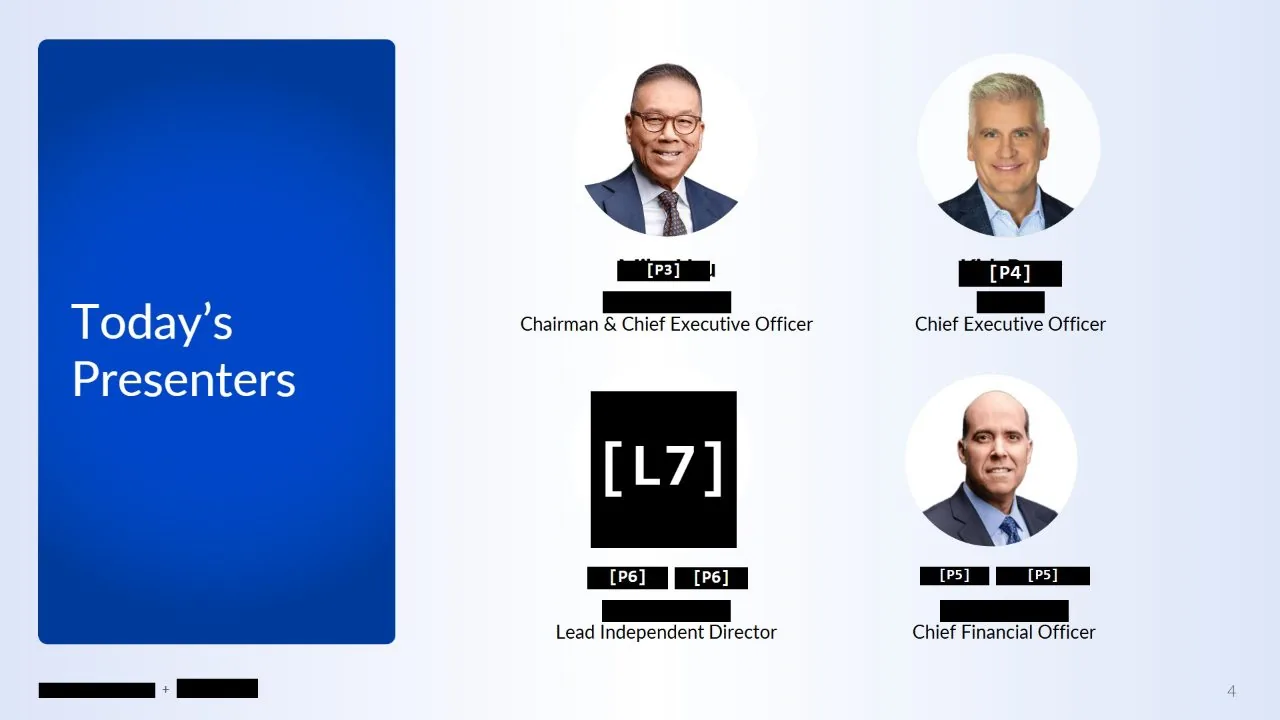
Why a blur or a markup pen is not enough
Pixelating or blurring text looks final, but it is not always. Tools have been published that recover pixelated text by trying candidate words until the blur matches, and a light blur over a short number can often be read by eye. A solid black box is the safe choice.
A markup pen has its own problem. Some editors save the drawing as a separate layer, or keep the original next to the edited copy, so the photo underneath can come back. And a photo carries data you cannot see: where it was taken, when, and on what device.
What Blinded does with an image
Open a PNG or JPEG and it is treated like a one-page document. Type a name, an account number or an address, and the words in the picture are read by text recognition in your browser, so each occurrence is found and proposed for you to accept. Where the reading fails, a second check looks for the word by its shape.
Draw a box round a face, a logo or a signature to cover it. If the same logo or badge appears more than once in the picture, pick it once and every other copy is found, at any size. Turn on the detectors and email addresses, phone numbers and web addresses are proposed without being typed.
Rebuilt, not covered
The export is a new PNG drawn from the pixels on screen, with the black bars as part of the picture. There is no layer to remove and no original stored beside it. Because it is a new image, none of the original’s hidden data comes with it: no location, no camera, no date. You can also give it a new file name as you save it, which matters when the old name was the thing you were hiding.
Screenshots, phone photos and scans
Screenshots are usually PNG already and open as they are. Photos from an iPhone are often saved as HEIC, which needs converting to JPEG first; sharing or exporting the photo as JPEG does it. A photographed document or screen works too: the text recognition reads photographed pages as well as clean ones, though a sharp, straight photo is always read better than a blurred one.
It works in a phone browser as well as on a computer, so a screenshot can be redacted on the device that took it, without installing an app.
Nothing is uploaded
The image never leaves your device. Everything runs in the browser tab, and the page is not permitted by the browser to send anything anywhere. That matters most for exactly the pictures people redact: IDs, bank details, medical letters and private messages. A single image is one page, so it is free.
How to do it, in four steps
- Open the PNG or JPEG. It stays on your device.
- Type the words to remove, and draw a box round any face, logo or signature.
- Check what was found; every mark is listed and any one can be turned down.
- Export the redacted PNG, under a new name if the old one says too much.
Who it is for
Anyone sharing a screenshot or photo that shows more than it should: support teams sending a screenshot to a supplier, people posting a receipt or a message, and anyone sending a photo of an ID or a letter.
Questions
Which image formats does it open?
PNG and JPEG. HEIC photos from an iPhone need converting to JPEG first. The redacted result is saved as a PNG.
Is blurring safe enough?
Not always. Pixelated and blurred text can sometimes be reconstructed, especially short numbers. A solid box, with the image rebuilt underneath it, is the safe choice.
Does it remove the photo’s location data?
Yes. The export is a new image drawn from the pixels, so the original’s hidden data, such as location and camera, is not carried over.
Is the image uploaded?
No. It is opened, read and rebuilt in your browser, and the page is not permitted to send anything anywhere.
Also
- How to redact a PDF properly
- Redact a PDF on a Mac
- AI redaction without uploading your document
- Redact a CIM or teaser without uploading it
- FOIA redaction without sending the records anywhere
- De-identify scanned records
- Your redacted text is still extractable. Here is why
- Redact a PDF before you paste it into ChatGPT or Claude
- Redact a board pack
- Redact CVs for blind screening
- Remove names and faces from photographs in a report
- Redact a bank statement
- Remove a logo from every page of a PDF
- Redact a PDF without Adobe Acrobat Pro
- iLovePDF vs Smallpdf vs PDFgear vs Blinded for redaction
- Remove a letterhead or stamp from every page
- Redact images in a PDF or PowerPoint deck
- Redact scanned documents automatically