Redact images in a PDF or PowerPoint deck
Most redaction tools are built for words. A slide deck is mostly pictures: headshots, product photographs, screenshots of a dashboard, a chart exported as an image, a logo in the corner of every slide. Those need to go too, and they need to actually leave the file.
Open the tool Free below twenty pages, in your browser. Nothing is uploaded.
 After
After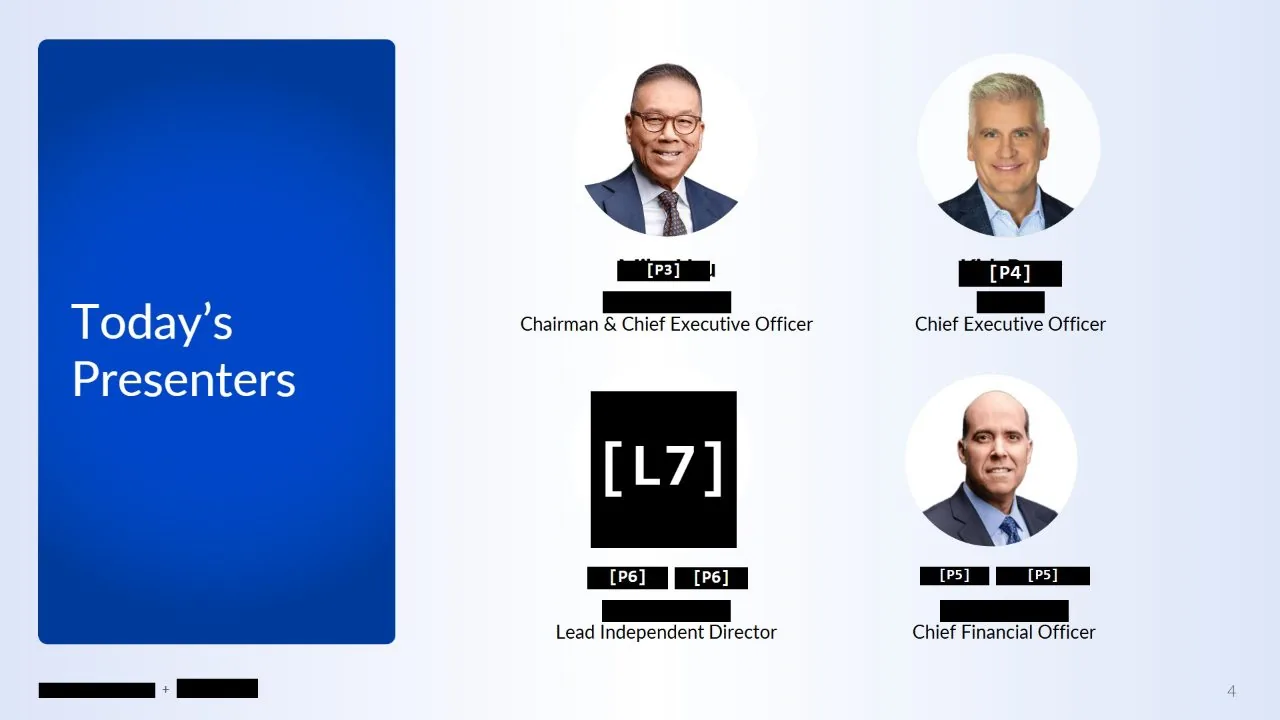
Covering a picture is not removing it
Drawing a black shape over a photograph in PowerPoint, or a rectangle over it in a PDF viewer, leaves the photograph where it was, underneath. Anyone who opens the file in an editor, moves the shape, or extracts the images gets the original back. The same is true of a picture that has only been cropped: the cropped-off part is usually still stored in the file.
Here every page of the export is rebuilt from pixels. Whatever sits under a bar is replaced by the bar in the new page, and the old picture is not carried across. There is nothing underneath to find.
One box for one picture, one pick for every copy
To remove a single photograph, draw a box over it. To remove a picture that repeats, such as a logo in every footer, a watermark graphic or the same headshot on the cover and the team page, pick it once instead: every other copy is found by what it looks like, at any size, and proposed for you to accept.
Words inside pictures are handled too. A name on a product box, the axis labels of a chart pasted as a screenshot, or a caption set in the image itself are read by text recognition in your browser, so typing the name once finds it in the pictures as well as in the text.
PowerPoint, Keynote and Google Slides
Blinded opens PDF files and PNG or JPEG images, not .pptx files directly. Export the deck to PDF first; it takes one click and keeps every slide exactly as it looks. In PowerPoint, File, Export, Create PDF. In Keynote, File, Export To, PDF. In Google Slides, File, Download, PDF Document.
The redacted result is a PDF, which is also what you want to send: a redacted .pptx still holds the original pictures in its package, and anybody can open it and pull them out.
What it does not do
It does not recognise a person. The same headshot used twice is found, because it is the same picture; a different photograph of the same person is a different picture and needs its own box. And it proposes rather than decides: every match is listed by page before anything is covered.
How to do it, in four steps
- Export the deck to PDF if it is a PowerPoint, Keynote or Google Slides file, then open it here. Nothing is uploaded.
- Draw a box over each picture to remove, or pick a repeated one once to find every copy.
- Type any names or words that also appear in the pictures.
- Redact and export. The pages are rebuilt, so the pictures are gone.
Who it is for
Anyone sharing a deck outside the company: consultants reusing client work, founders sending a deck to investors, and teams publishing a presentation with people or customers in it.
Questions
Can I redact a PowerPoint file directly?
Not a .pptx file; export it to PDF first, which takes one click in PowerPoint, Keynote or Google Slides. The output is a redacted PDF.
Will the original image still be in the file?
No. Every page is rebuilt from pixels on export, so the covered picture is not carried into the new file.
Does it find faces automatically?
It finds repeats of a picture you pick, including the same headshot used again. It does not recognise a person across different photographs.
Is the file uploaded?
No. Everything runs in your browser, and the page is not permitted to send anything anywhere.
Also
- How to redact a PDF properly
- Redact an image, photo or screenshot
- Redact a PDF on a Mac
- AI redaction without uploading your document
- Redact a CIM or teaser without uploading it
- FOIA redaction without sending the records anywhere
- De-identify scanned records
- Your redacted text is still extractable. Here is why
- Redact a PDF before you paste it into ChatGPT or Claude
- Redact a board pack
- Redact CVs for blind screening
- Remove names and faces from photographs in a report
- Redact a bank statement
- Remove a logo from every page of a PDF
- Redact a PDF without Adobe Acrobat Pro
- iLovePDF vs Smallpdf vs PDFgear vs Blinded for redaction
- Remove a letterhead or stamp from every page
- Redact scanned documents automatically